VPN connection with GlobalProtect
Multi-Factor Authentication (MFA) has ben mandatory to connect to the VPN with GlobalProtect
from 9:00 a.m. on May 18th, 2026.
MFA will also become mandatory for other services, so please enable it as soon as possible to ensure continued access.
You can set up MFA in advance from here.
VPN Client(GlobalProtect)installation
-
CautionPlease note that using the browser’s Incognito or Private mode may prevent proper authentication and result in connection issues.
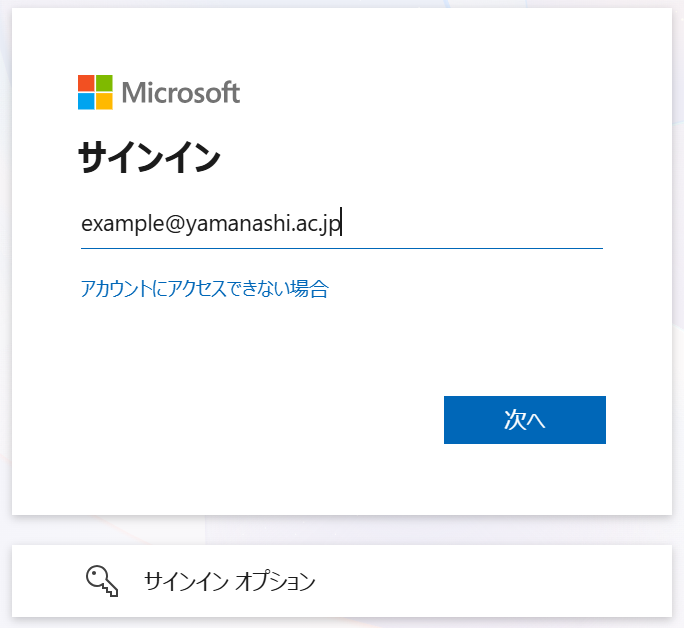
- Access https://vpn.yamanashi.ac.jp. Then enter your account and click “Next”.
The following process may be skipped to “5” if you already have signed-in with your browser.
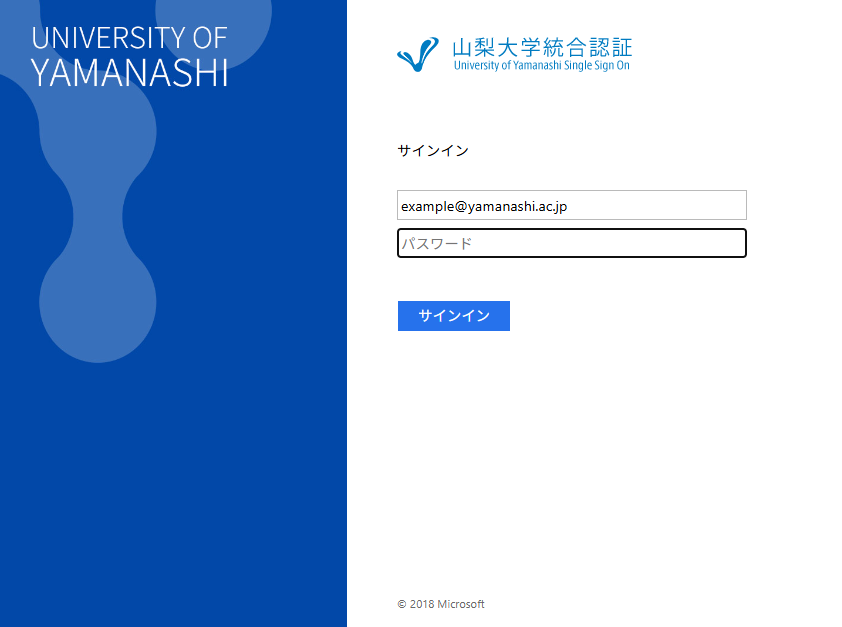
- Enter your password and sign in.
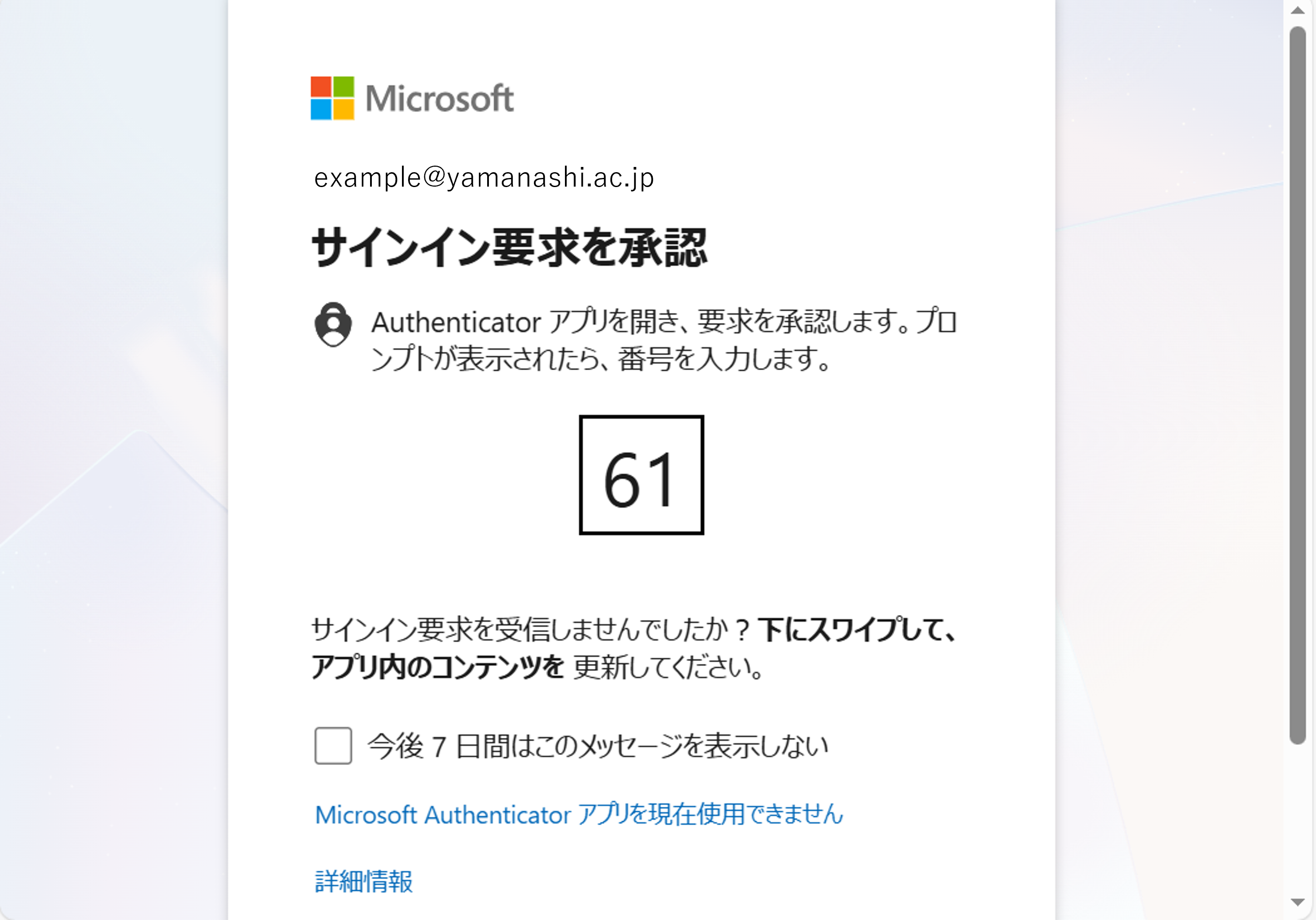
- If required, complete Multi Factor Authentication. The image below is an example when MFA is requied on Microsoft Authenticator Application.
Multi-Factor Authentication (MFA) has been mandatory to connect to the VPN with GlobalProtect
from 9:00 a.m. on May 18th, 2026.
MFA will also become mandatory for other services, so please enable it as soon as possible to ensure continued access.
You can set up MFA in advance from here.
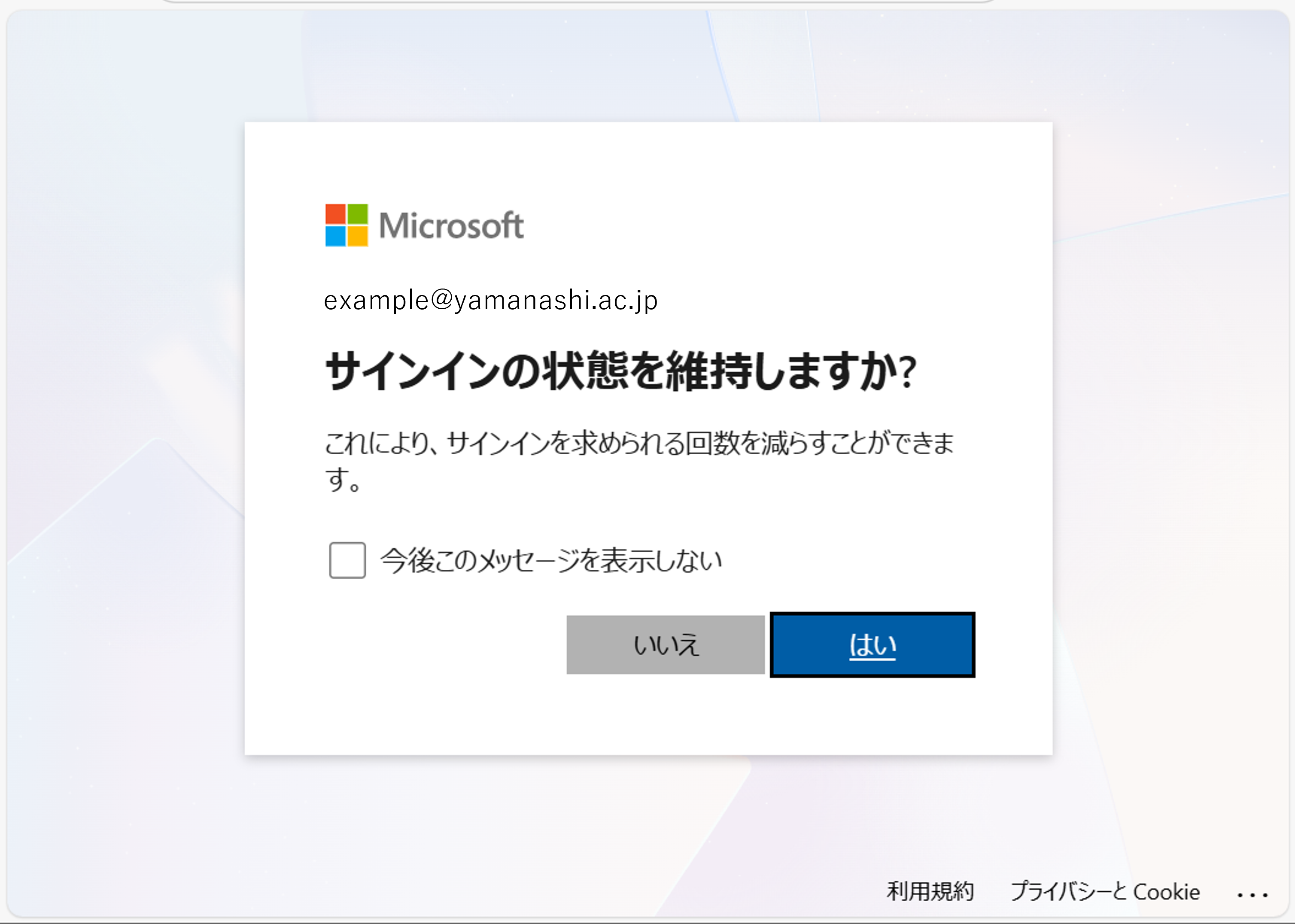
- Select “Yes” or “No” according to your preference.
[Yes]: your authentication credentials for this account will be saved in the browser, allowing you to skip password entry on the single-sign on site in the future.
[No]: you will be required to enter your password again each time.
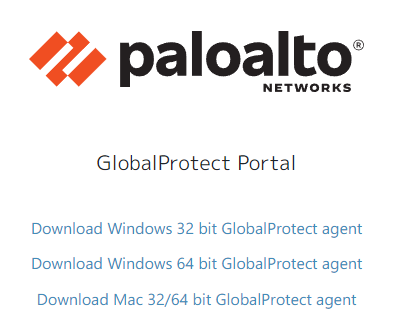
- Download the appropriate version for your computer environment.
※These installers cannot be used on devices with ARM processors. Please contact us directly for assistance from here.
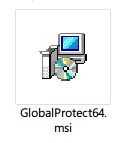
- Double-click the downloaded file to run the installation.
Click “Next” during the entire installation process.
 If the message “インストールしようとしているアプリは、Microsoft Storeの確認済みアプリではありません” (The app you’re trying to install isn’t a Microsoft-verified app) is displayed, please set it to “Anywhere” in No. 3 of the “Operating Instructions” on the following page, and then try installing it again.
Connecting with GlobalProtect
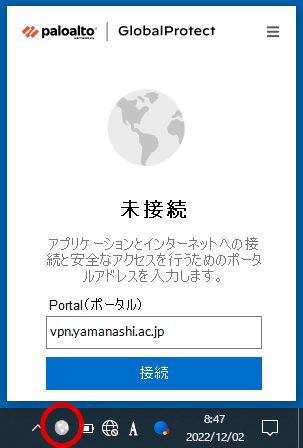
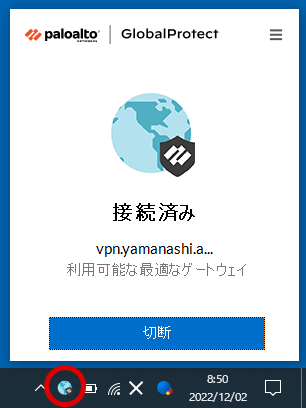
- When installation is complete, the GlobalProtect icon will appear in the task tray.
If the icon does not appear, restart Windows.
Click to open, enter vpn.yamanashi.ac.jp in the portal field and press the “接続” (Connect) button.
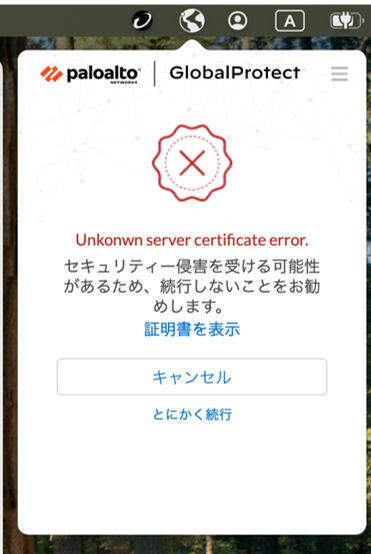
If you see the following warning on GlobalProtect for Mac, please click “とにかく続行”(Proceed Anyway) to continue the connection.
- The browser will launch automatically and initiate the single sign-on process, following the same steps as described in steps 1 to 4 of the “VPN Client(GlobalProtect) installation” guide.
*If you select “Yes” at “Stay signed in?” screen on connectiong VPN, this process will be skipped. - Enter Username and Password on GlobalProtect window and clicke “接続(Connect)”.
Caution Please do not add “@yamanashi.ac.jp” to your Username here.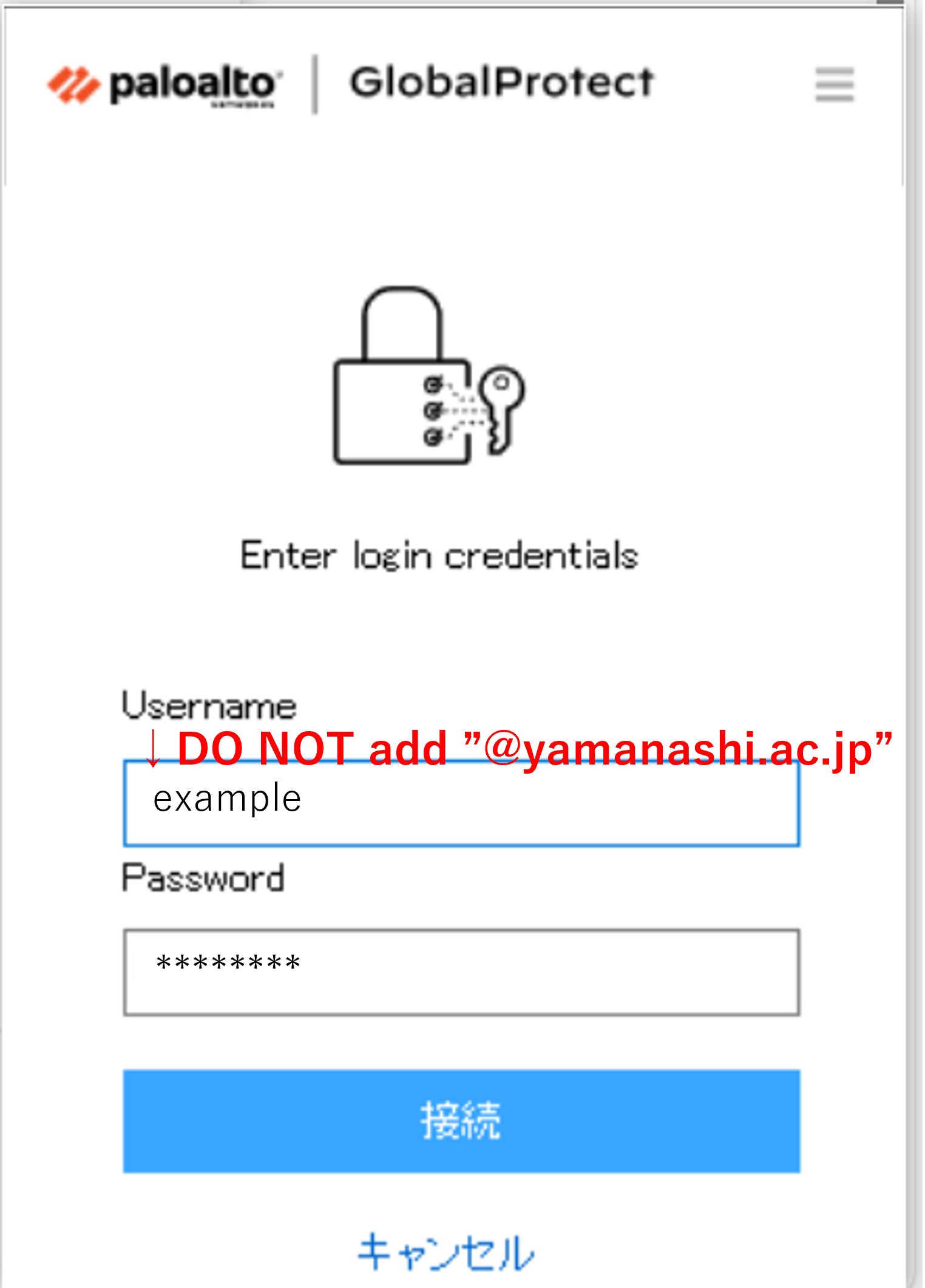
-
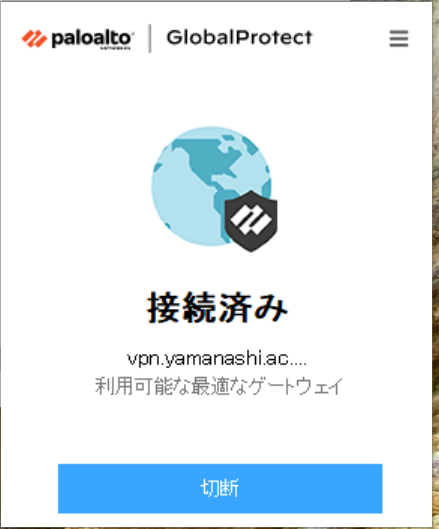
Once the following screen appears, the connection is complete.
Terminate the connection
Second and later connections
Uninstalling the Mac version
To uninstall the VPN software (GlobalProtect) for Mac, you will need the files used during installation. If you have discarded them, please follow the “Installation of VPN Software (GlobalProtect)” procedure again to download the software.
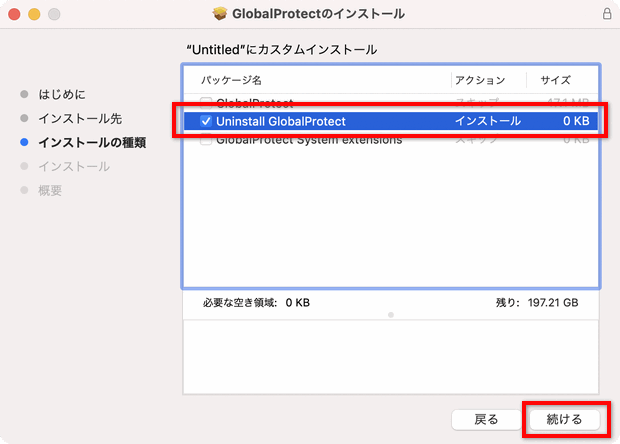
When you run the installation file and proceed through the steps, you will be given a choice of installation types along the way.
Select only “Uninstall GlobalProtect” and continue with the procedure.