
Multi-Factor Authentication
Overview
Multi-Factor Authentication (MFA) is a security method that verifies a user’s identity by combining two or more authentication factors, helping to prevent unauthorized access such as illicit logins.
At Yamanashi University, when accessing university services from outside the campus network, users are required to authenticate not only with their password but also through a personal device such as a smartphone or mobile phone.
This additional layer of security makes it extremely difficult for third parties to gain unauthorized access, even if a password is compromised.
Cases where Multi-Factor Authentication is required
Multi-Factor Authentication is required when the following conditions are met:
- Access from networks outside Yamanashi University
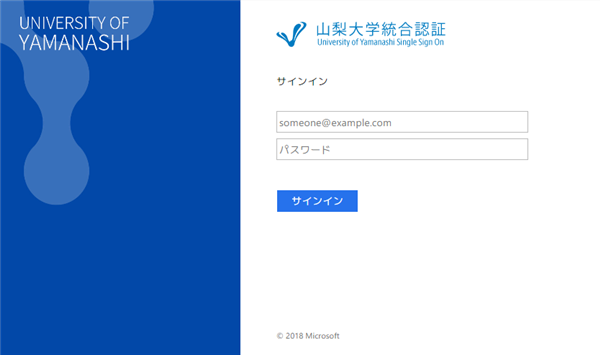
*except when connected via VPN - Services that require Yamanashi University single sign-on Authentication: services which following windows appears on sign-in.
What you need for Multi-Factor Authentication
To use Multi-Factor Authentication, you must have a personal smartphone or mobile phone.
Authentication is performed using one of the following methods:
- Smartphone application: Microsoft Authenticator
- SMS: Enter the verification code sent via SMS.
- Phone call: Authenticate by answering a phone call.
How to use
Enable Multi-Factor Authentication
Access the following page, turn “On” Multi-factor Authentication, and click the “OK” button.
Please note that it may take up to half a day for the setting to become active, so make sure to complete the initial setup below only after that.
Authenticate with Smartphone Application
For users with smartphones, app-based authentication is the preferred method.
Initial setup
You need Microsoft Authenticator application.

*The following instructions use iPhone screenshots as examples, but the steps are nearly the same on iPad and Android devices.
- Download Microsoft Authenticator with your own smartphone.
Scan the QR code below.
Proceed to “3” if you already have the app.


- Launch the Microsoft Authenticator app.
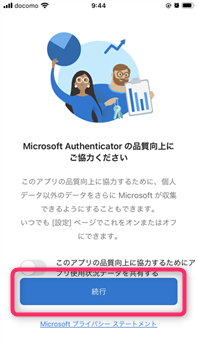
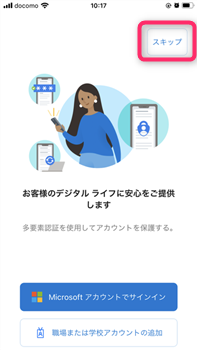
Tap “Accept” → “Continue” → “Skip” to proceed with the setup.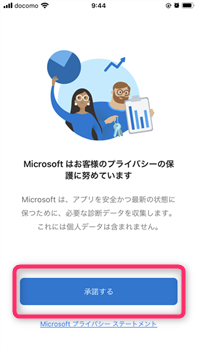
- Open “Verified ID” Tab.
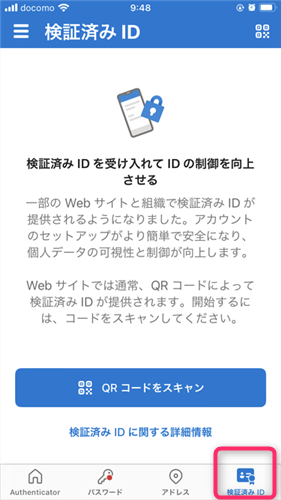
- You may now pause operations in the Microsoft Authenticator app.
- Using a browser or another device, access the Yamanashi University Single Sign-On login page and sign in with your ID and password.
Yamanashi University Single Sign-On
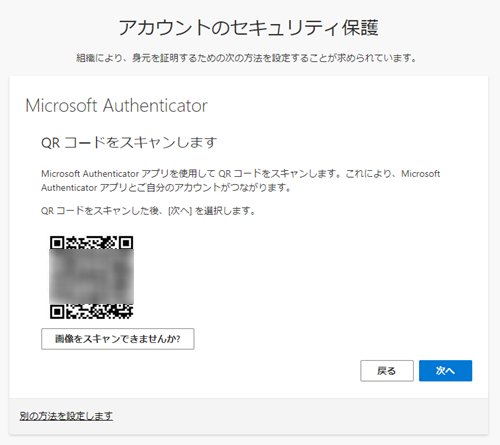
- Keep clicking the “Next” button until the QR code appears.
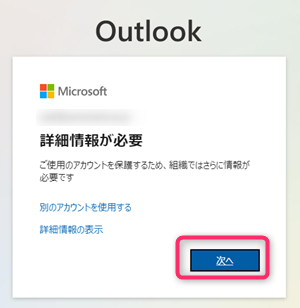
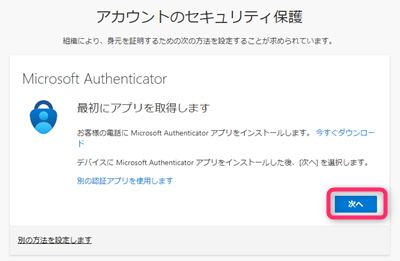
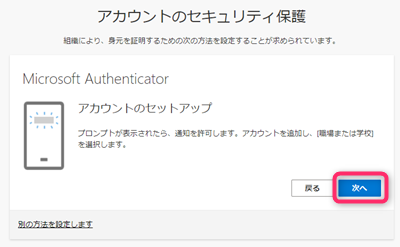
Pause when the QR code appears.
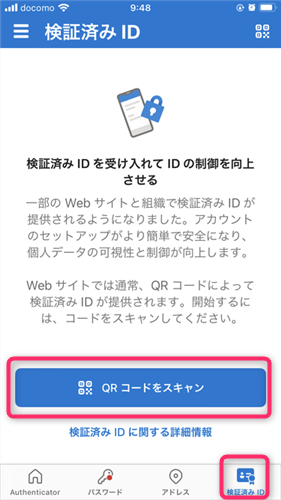
- On your smartphone, open the Microsoft Authenticator app and tap the “Scan QR Code” button under the “Verified ID” tab.
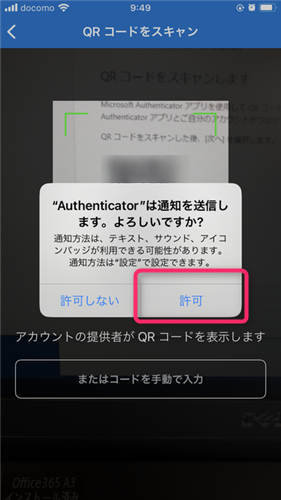
- Scan QR code.
When prompted on the scan screen, be sure to allow notifications.
- If the QR code is scanned successfully, your email address(with @yamanashi.ac.jp) will be added under the “Authenticator” tab.
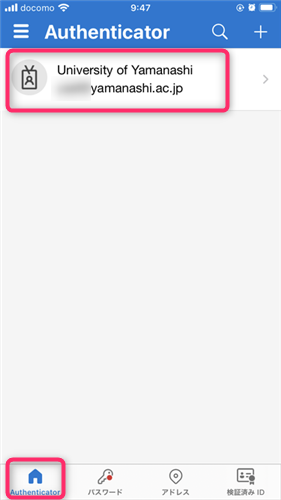
- After confirming that your email address has been added to Microsoft Authenticator, return to the browser and click “Next”.
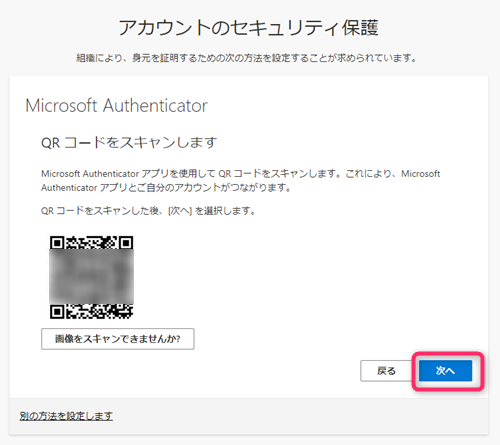
A notification will be sent to your smartphone.
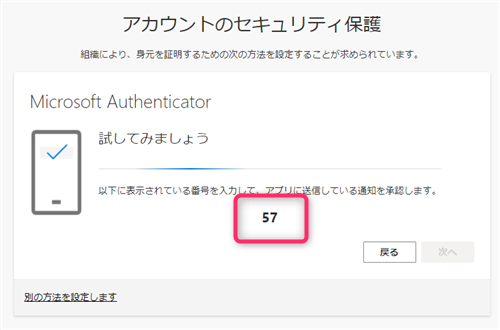
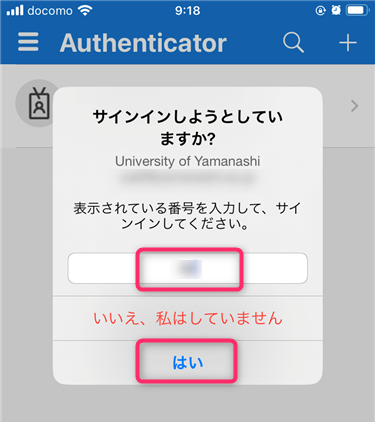
- A notification requesting approval will be sent to your smartphone.
Enter the number shown on the authentication screen, then tap “Yes”.
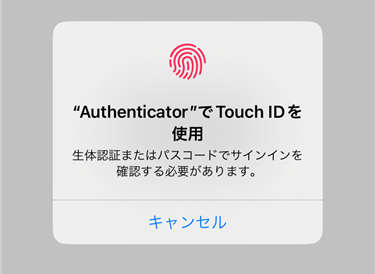
Complete biometric authentication or enter your passcode on your smartphone.
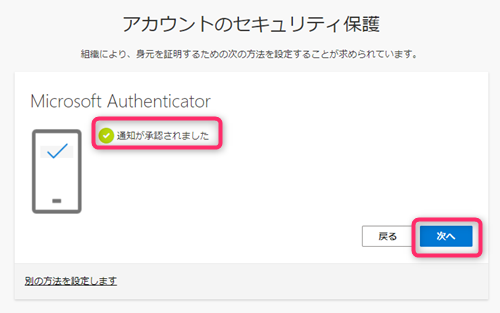
- Once approval is completed on your smartphone, a message saying “Notification approved” will be displayed.
Click “Next”.
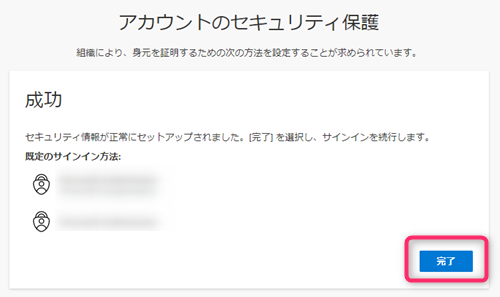
- When you reach the following screen, the initial setup is complete. Tap the “Finish” button.
Subsequent Logins
- Access the Yamanashi University Single Sign-On login page and sign in with your ID and password.
Yamanashi University Single Sign-On
- The following screen will appear, and a notification will be sent to your smartphone at the same time.
- A notification requesting your approval will be sent to your smartphone.
Enter the number shown on the authentication screen, then tap “Yes”.
Complete biometric authentication or enter your passcode on your smartphone.
Authenticate via SMS or phone call
If you do not have a smartphone, please use SMS or phone call for authentication.
Initial Setup
- Access the Yamanashi University Single Sign-On login page and sign in with your ID and password.
Yamanashi University Single Sign-On
- Click “Next”.
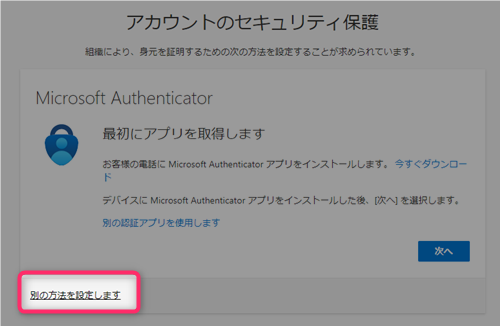
- Click on “Set up a different method”.
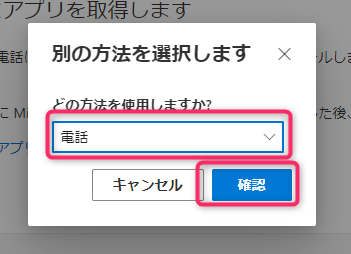
- Select “Phone” and click “Confirm”.
- Enter the phone number to be used for authentication. Make sure to input the mobile number of the account owner.
Don’t forget to select the country code e.g. ‘Japan (+81)’.
Choose your preferred authentication method: either “Send a code via SMS” or “Call me”.
Then, click the “Next” button.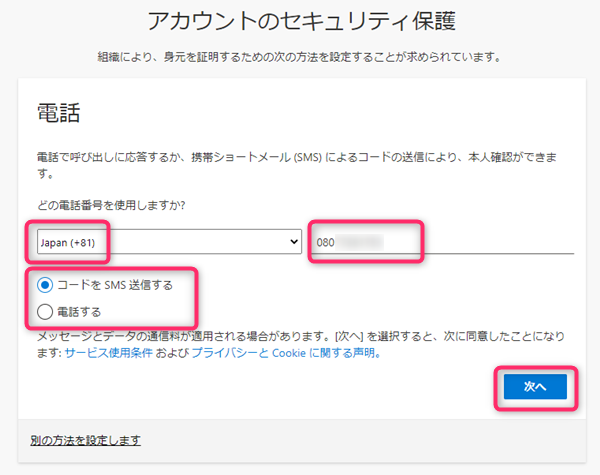
-
SMS
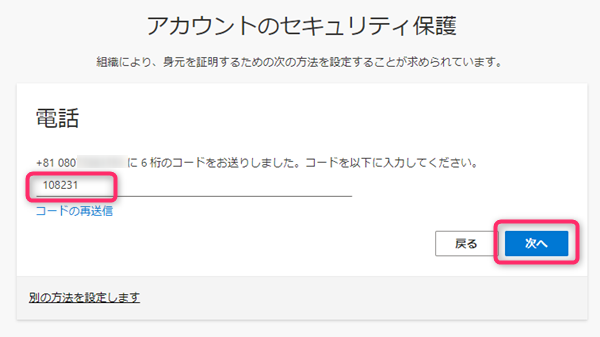
- You will receive a 6-digit verification code via SMS on your mobile phone.
Enter the code you receive and click “Next.”
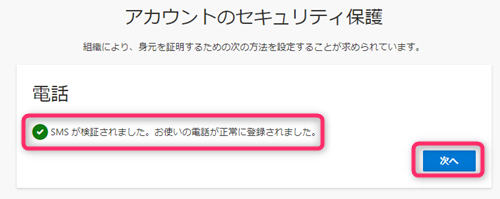
- Once you enter the correct code, a message saying “SMS has been verified” will appear.
Clicl “Next”.
Phone call
- You will receive an automated voice call from Microsoft on your mobile phone.
Operate according to the instructions.
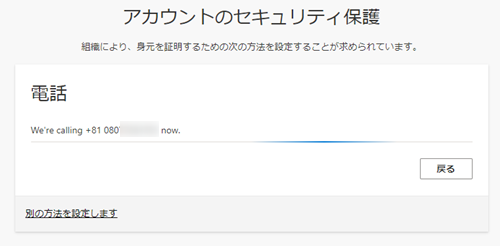
- Once the operation is complete, “Call answered” will be displayed.
Click “Next”.
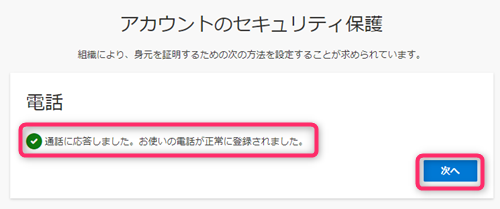
- You will receive a 6-digit verification code via SMS on your mobile phone.
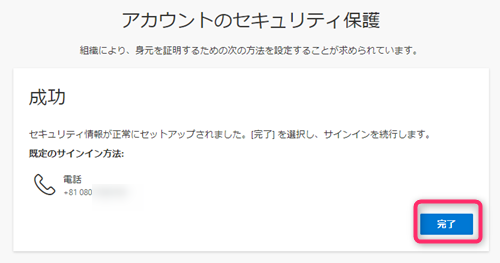
- When this screen appears, the initial setup is complete. Please press the “Finish” button.
Subsequent Logins
- Access the Yamanashi University Single Sign-On login page and sign in with your ID and password.
Yamanashi University Single Sign-On
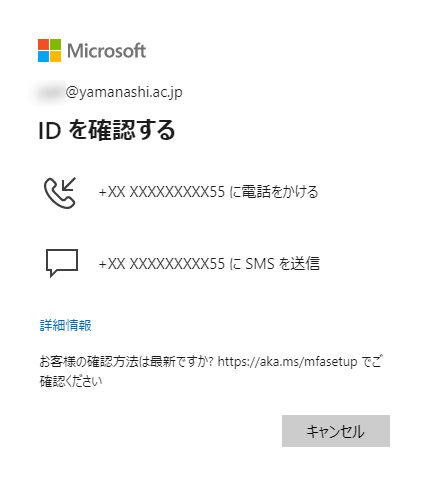
- The following screen will appear. Please choose either SMS or phone call.
-
SMS
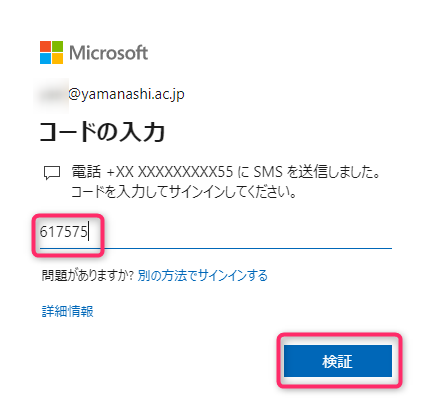
Enter the code received via SMS and press the “Verify” button to complete the login.
Phone call
You will receive an automated call from Microsoft. Follow the guidance provided to complete the login process.
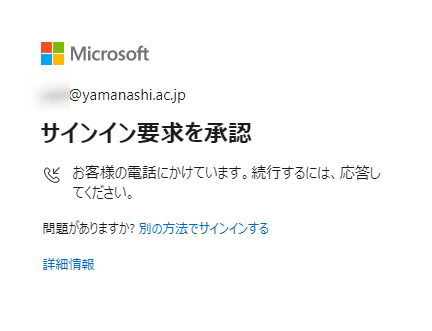
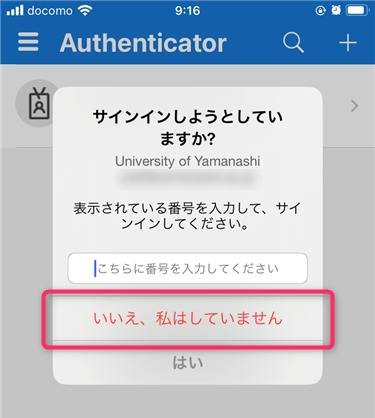
If an unexpected approval request appears…
If you receive an approval request on your smartphone even though you did not attempt to log in yourself, Please DENY.
If you receive a phone call requesting approval, DO NOT TAKE ANY ACTIONS—simply hang up.
FAQ
Lost the device registered for Multi-Factor Authentication / Mobile phone number has changed
How can I switch my multi-factor authentication method to an app or phone call?
- Log in Microsoft365.
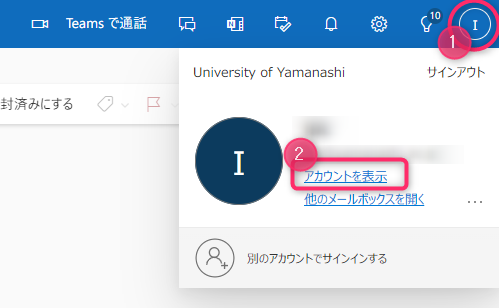
Microsoft365 - Click your account icon in the top right corner of the screen.
Click on “View Account”.
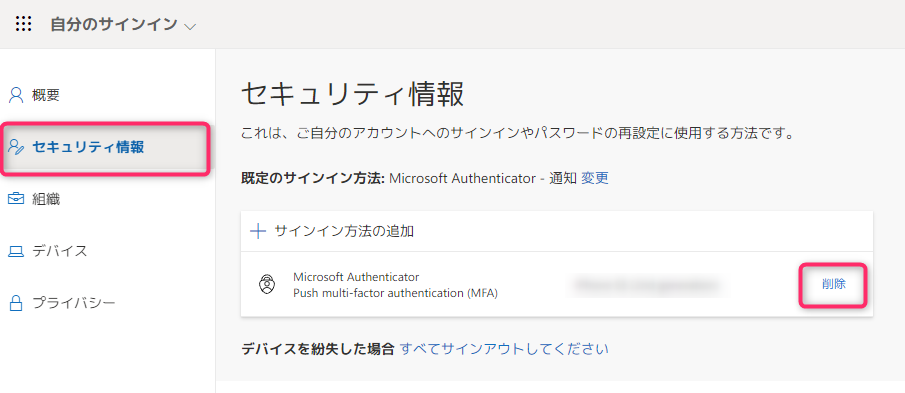
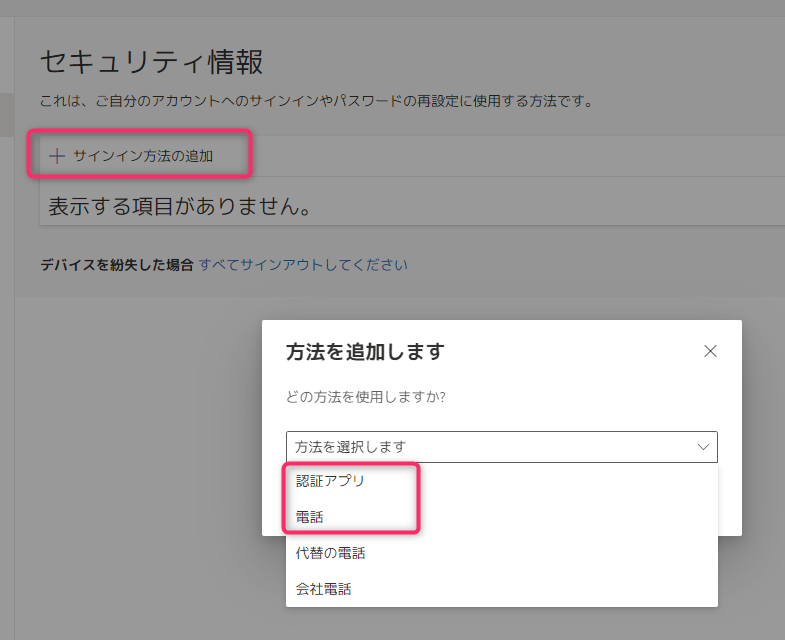
- From the menu on the left, select “Security Info”.
Your current authentication methods will be displayed. Click “Delete” to remove one.
- Select “Add sign-in method” and choose a new authentication method: either “Authenticator app” or “Phone”.
- For the remaining steps, please refer to the manual at the top of this page: “Authenticate with Smartphone Application” or “Authenticate via SMS or phone call“